How to Register a GIMworld Company Account? (Tutorial 2026)
2026 Guide · Company Account Registration
Register GIMworld Company Account Full Guide
Follow these 10 steps – complete in 10 minutes
Official video guide · 2026 update
Duration 1:21
1-2 Enter SSM
3 Username
4 Company name
5 Company email
6 Phone
7 Fax (opt)
8 Upload SSM
9 e‑Invoice
10 Password + Submit
1920x1080
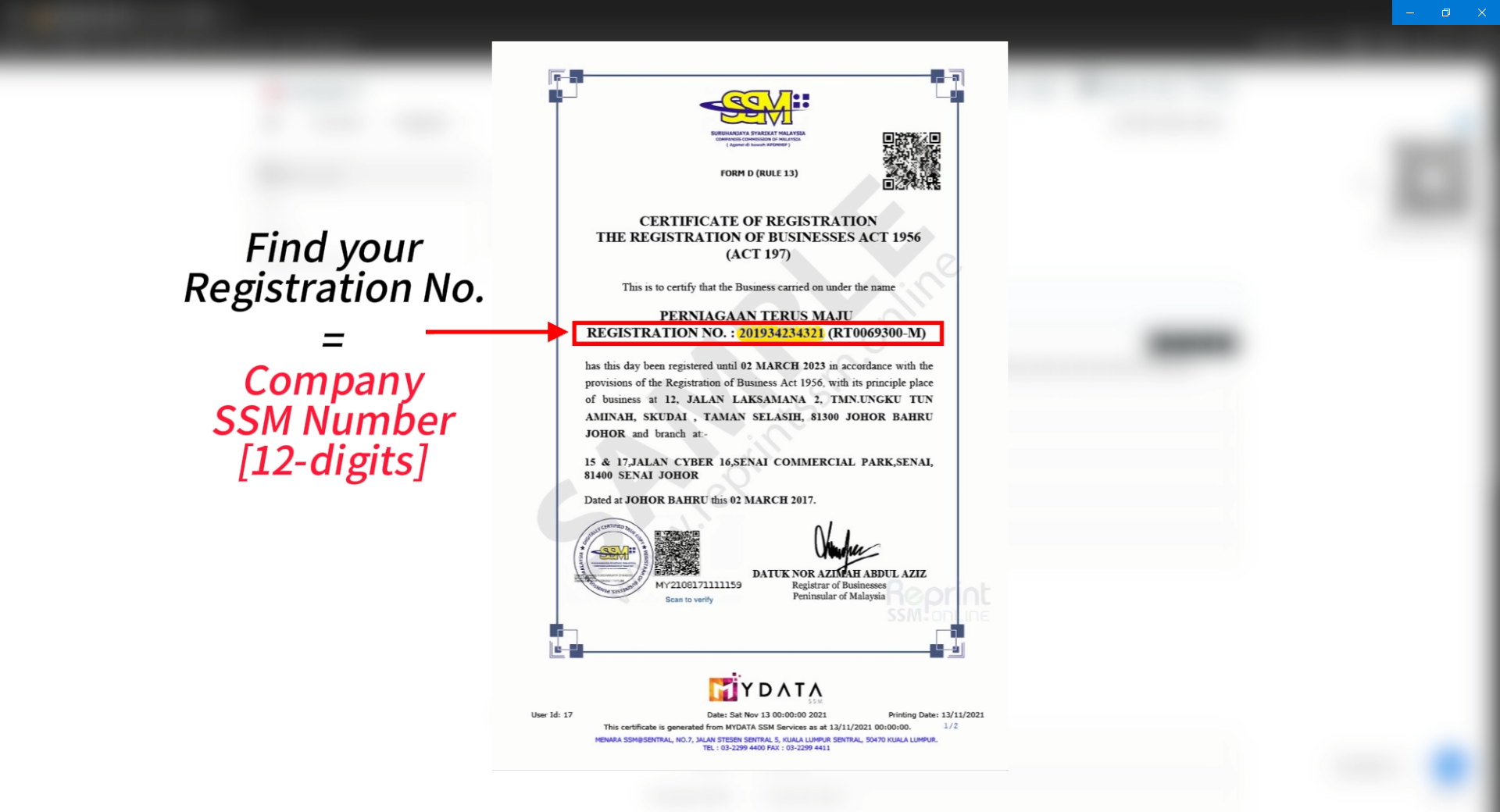
SSM cert – locate Registration No.
Click to enlarge
1920x1080
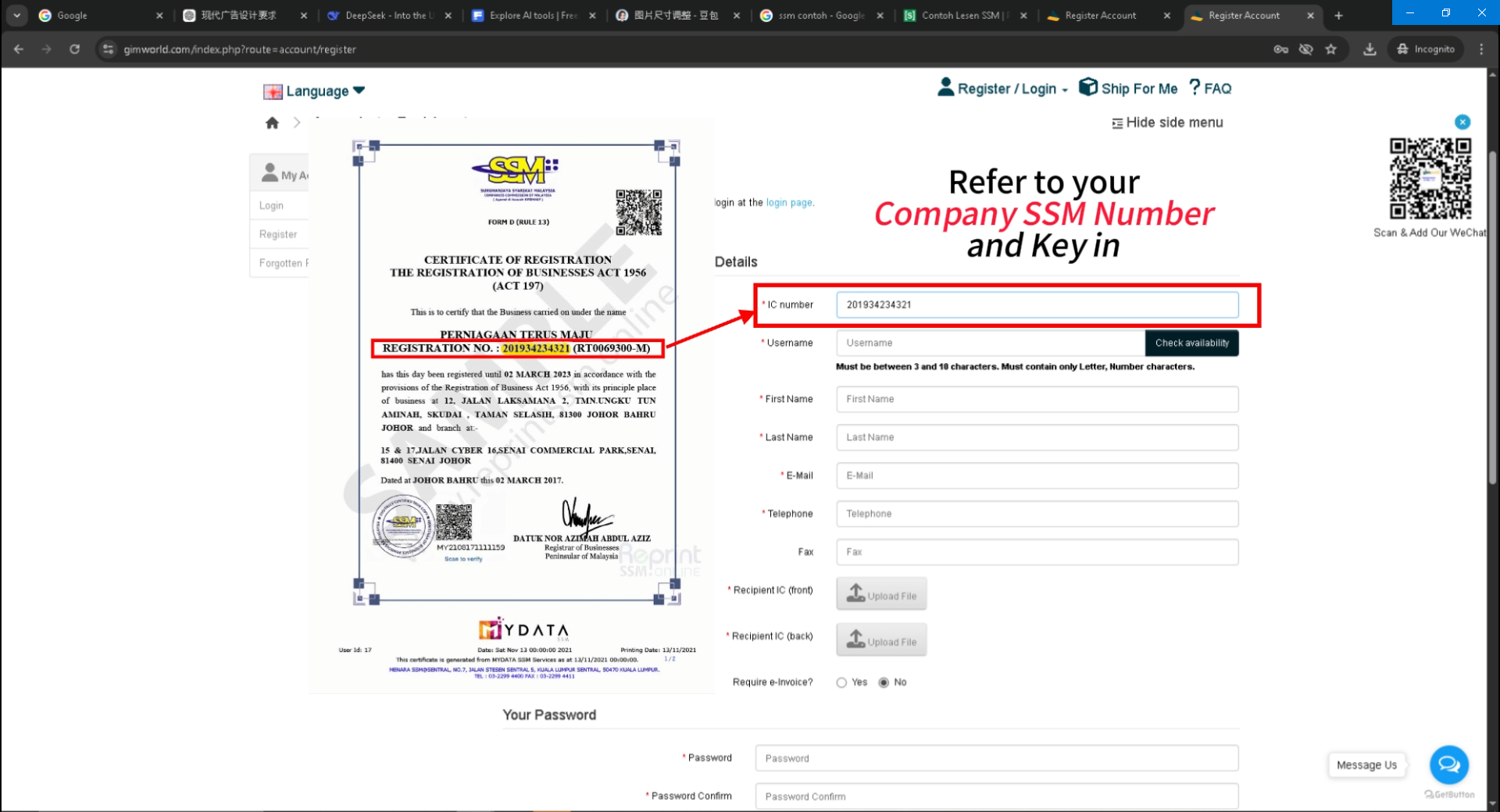
Enter SSM number
Click to enlarge
STEP 1 · STEP 2
Find Reg. No. + enter SSM
12‑digit Registration No. = company SSM number
Step 1: Locate your Registration No.
- Check the SSM screenshot – the red box shows the 12‑digit number.
- On your physical SSM cert – look for “No. Pendaftaran” or “Registration No.”
Registration No. usually starts with the year, e.g. "202301234567" – 12 digits.
Step 2: Enter the SSM number
- In the “IC number” field – type the 12 digits
- Numbers only, no spaces or dashes
- Double‑check with your certificate
1920x1080
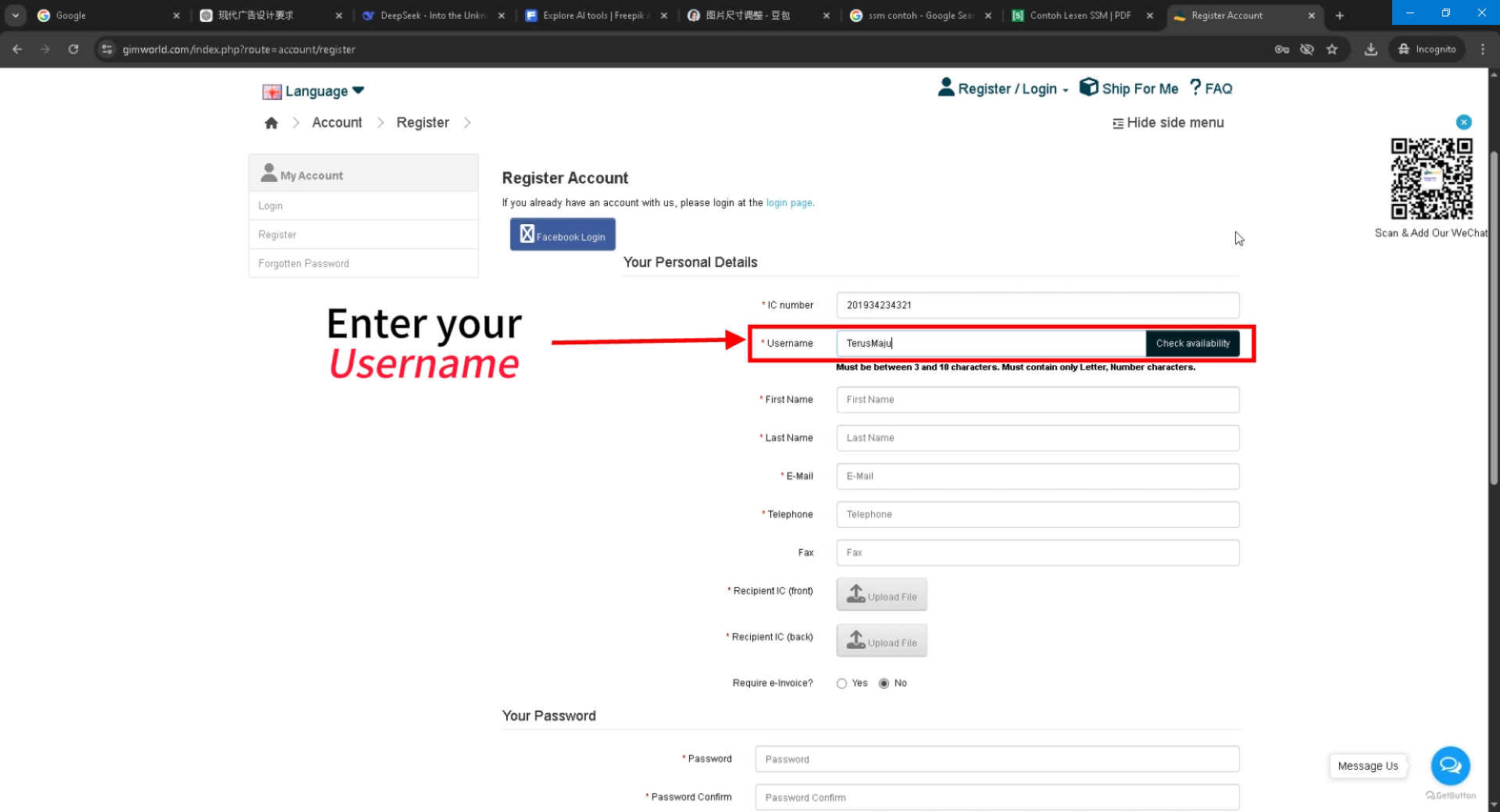
✏️ Step 3A – choose username
Click to enlarge
1920x1080
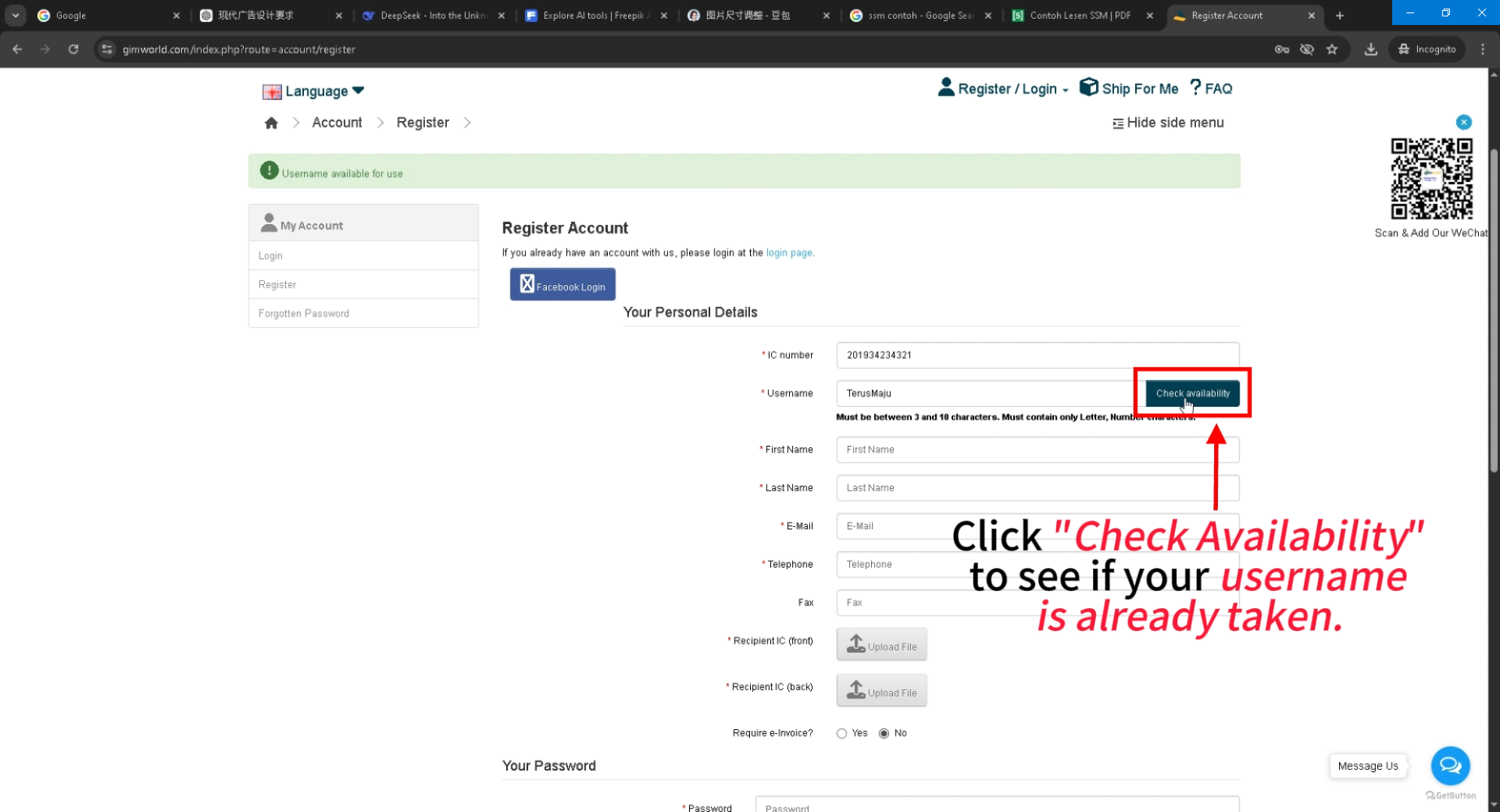
Step 3B – Check Availability
Click to enlarge
STEP 3
Create username & verify
Type username → click "Check Availability"
3A: Choose a username (company abbreviation + digits).
3B: Click "Check Availability" to see if it's taken.
3–10 characters, letters and numbers only.
✅ Proceed only if available.
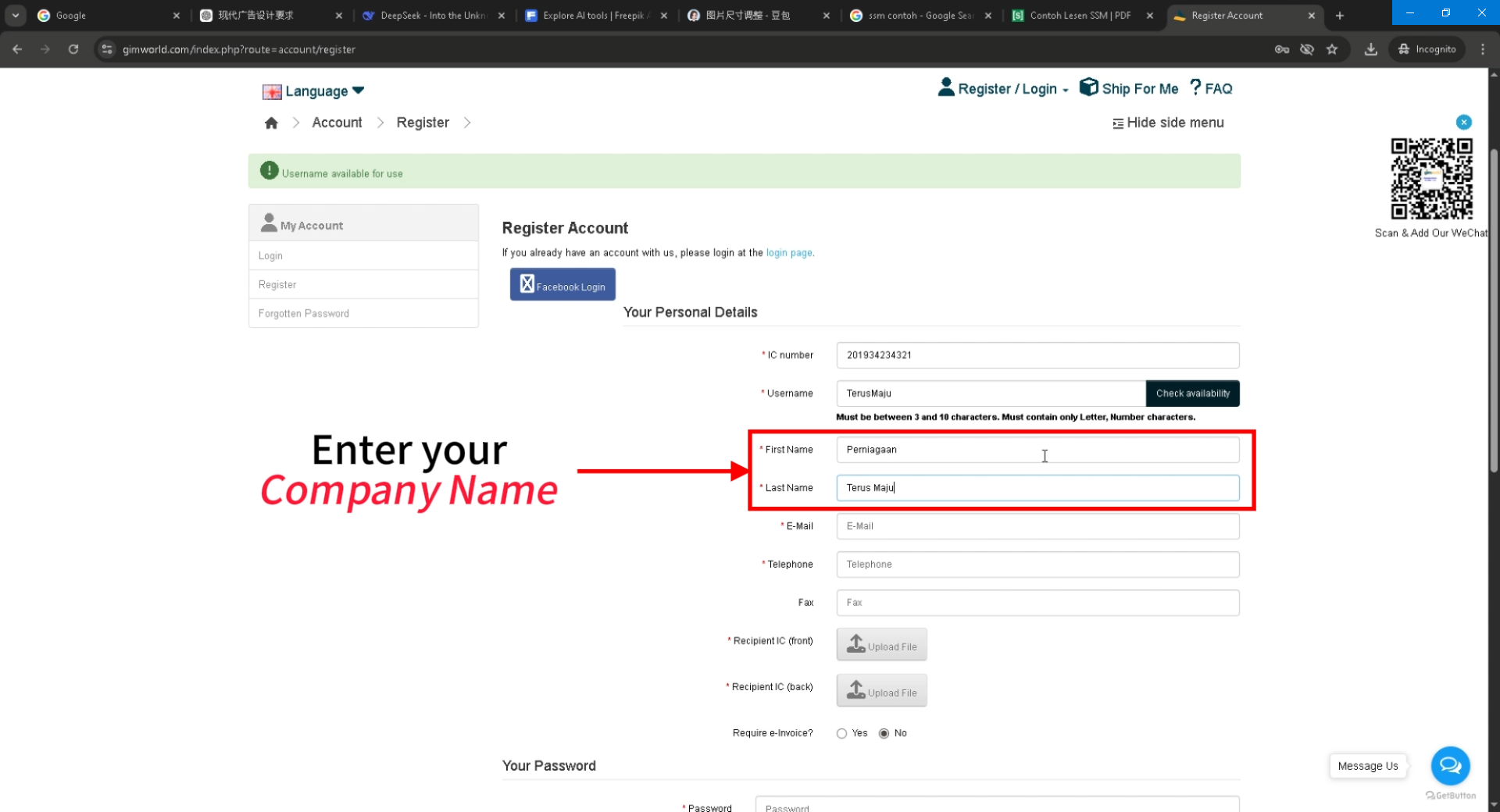
1920x1080
Company name field
Click to enlarge
STEP 4
Company name
Must match the SSM certificate exactly.
- Include punctuation and case
- No abbreviations
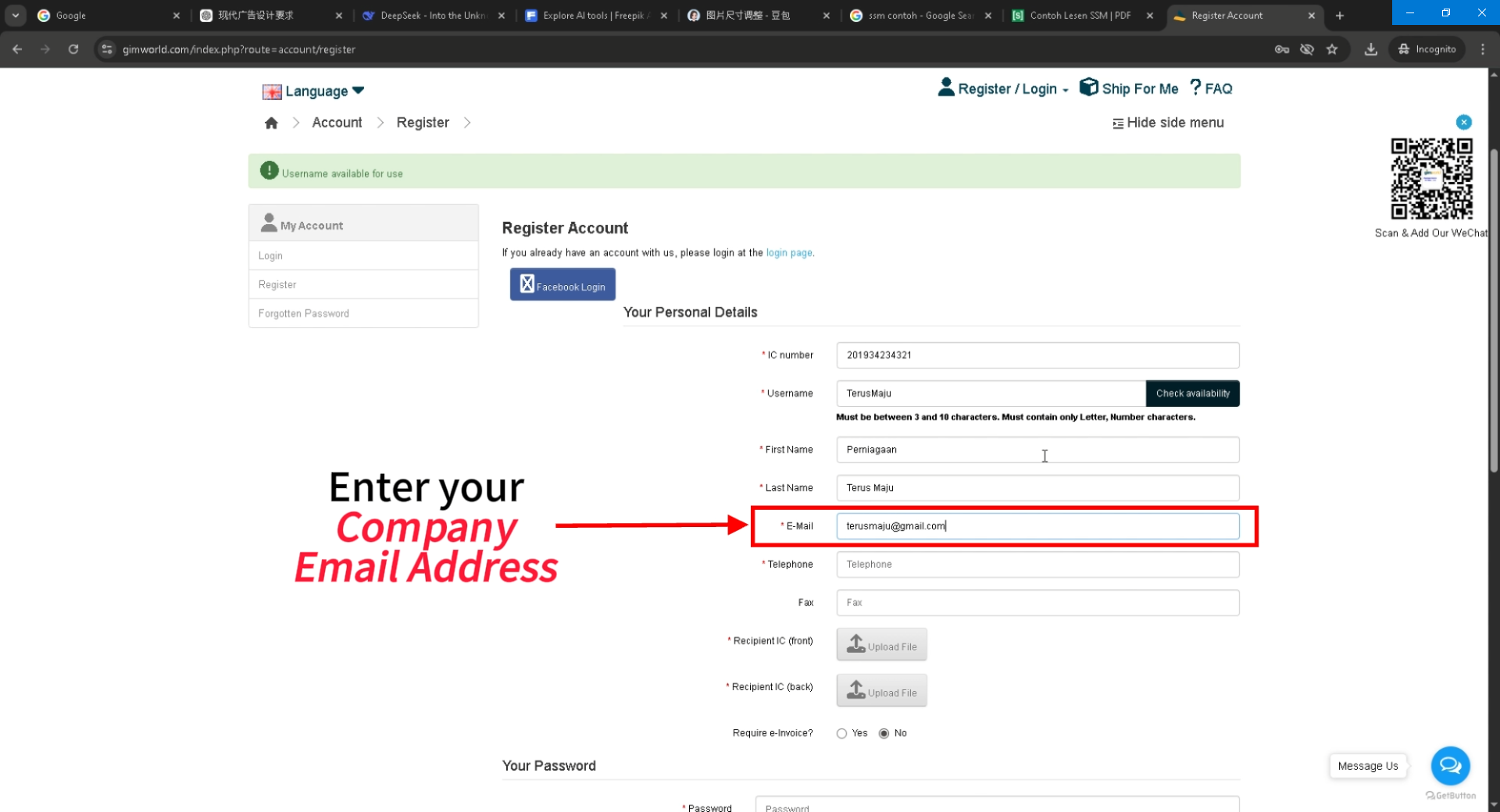
1920x1080
Company email
Click to enlarge
STEP 5
Company email
Active, regularly used inbox
Primary channel for verification & notifications.
- Preferably your company domain
- Make sure it can receive emails
Verification link will be sent here.
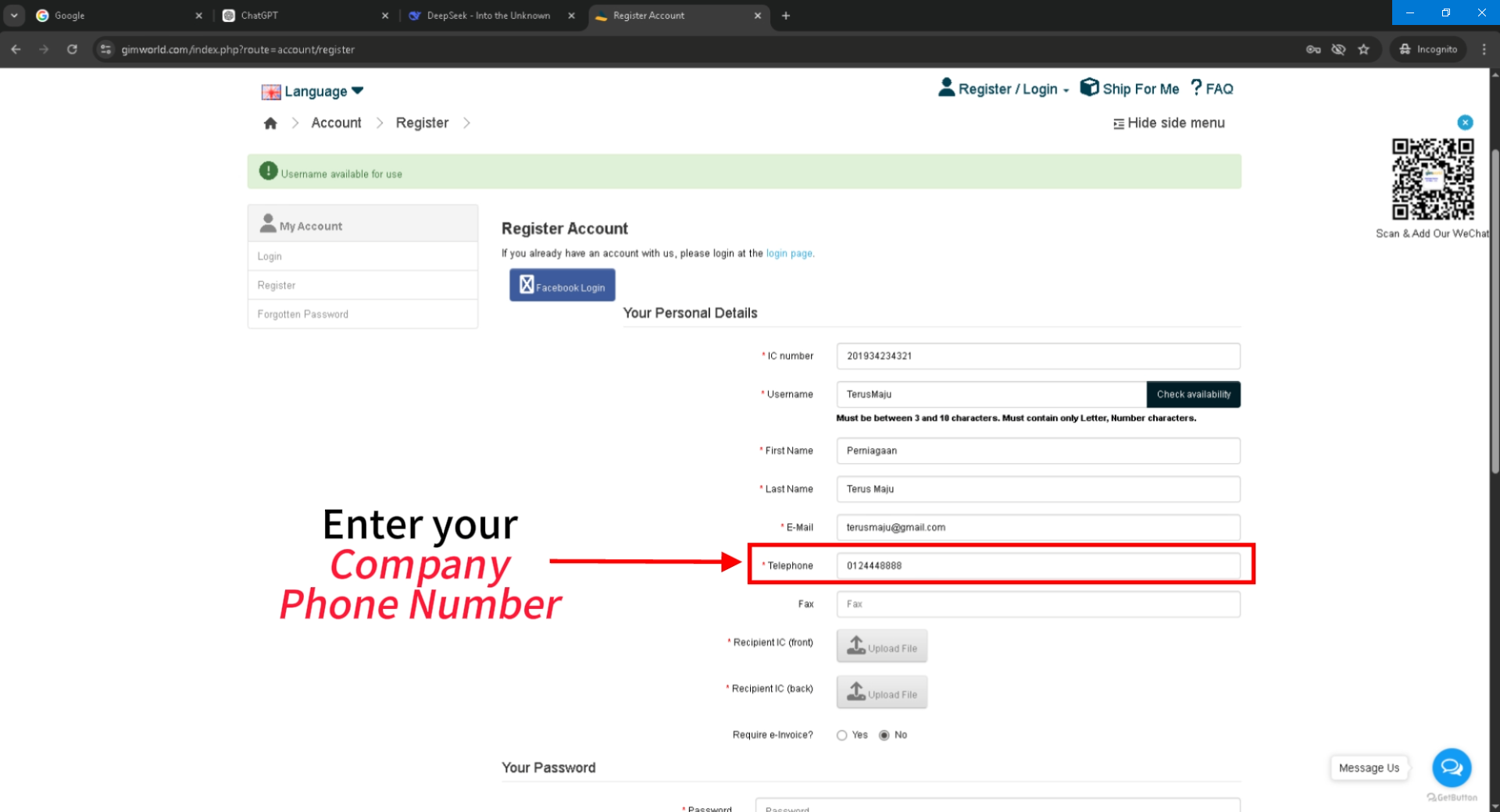
1920x1080
Phone number
Click to enlarge
STEP 6
Company phone
Landline or mobile of responsible person.
- Include area code e.g. 03-XXXXXXX
- Must be reachable
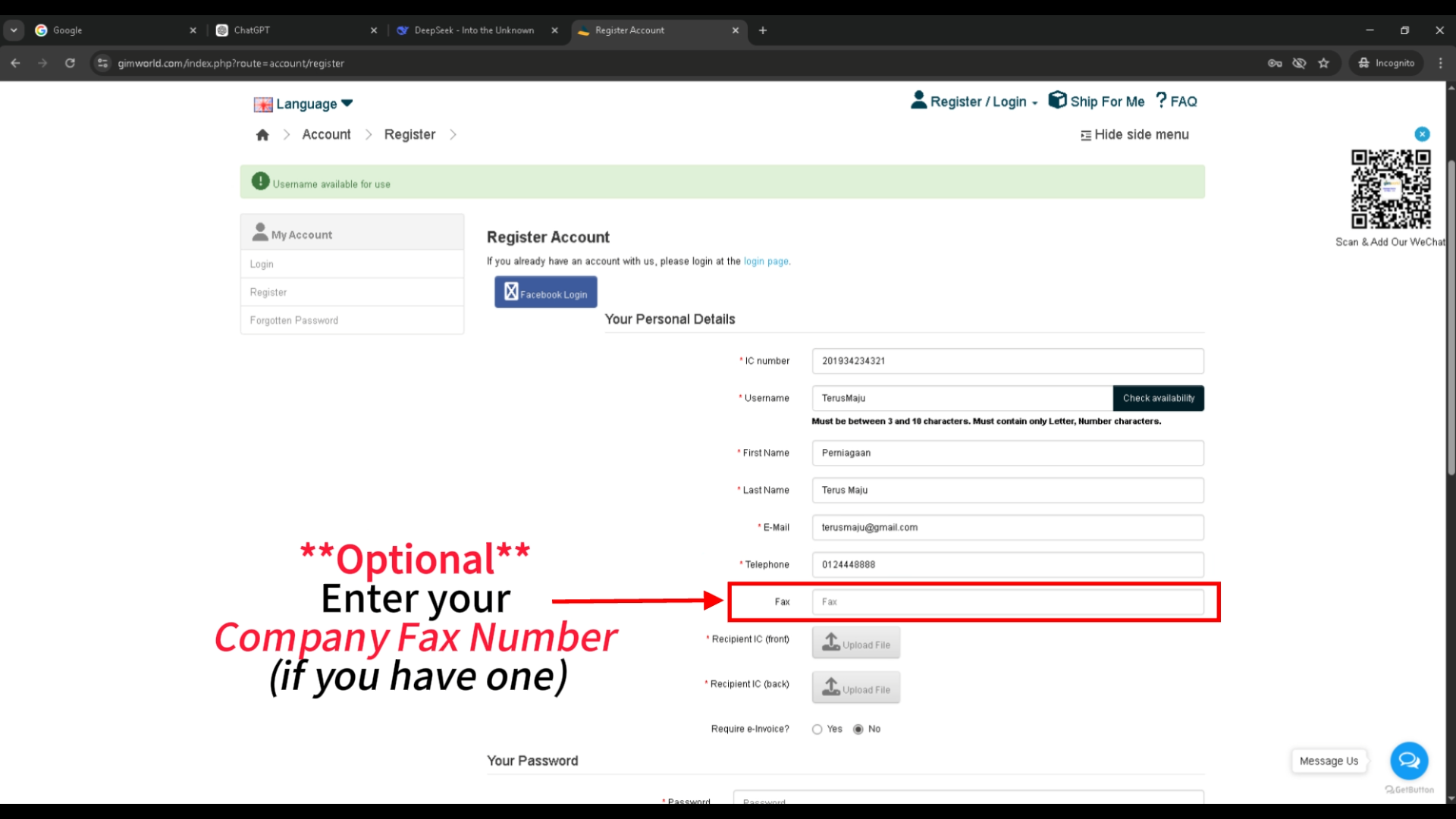
1920x1080
Fax (optional)
Click to enlarge
STEP 7
Fax number (optional)
No fax? Just skip it
Optional field – leave blank if not available.
1920x1080
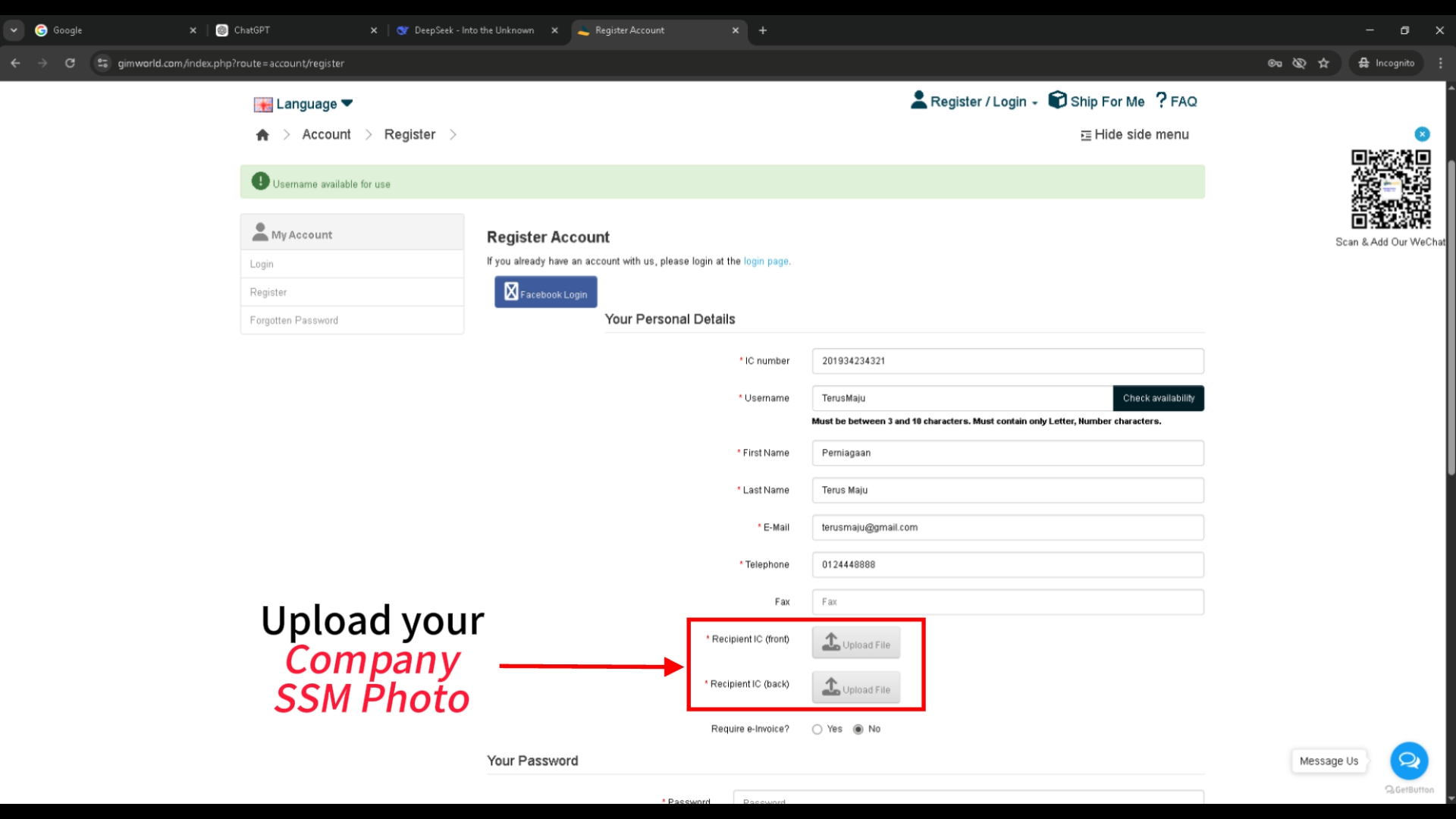
☁️ Upload SSM certificate
Click to enlarge
STEP 8
Upload company SSM
Clear photo / scan of SSM form
Click "Choose file", select certificate, then click "Upload".
- JPG, PNG, PDF (max 5MB)
- All text must be readable
If using phone camera, ensure good lighting and flat document.
1920x1080
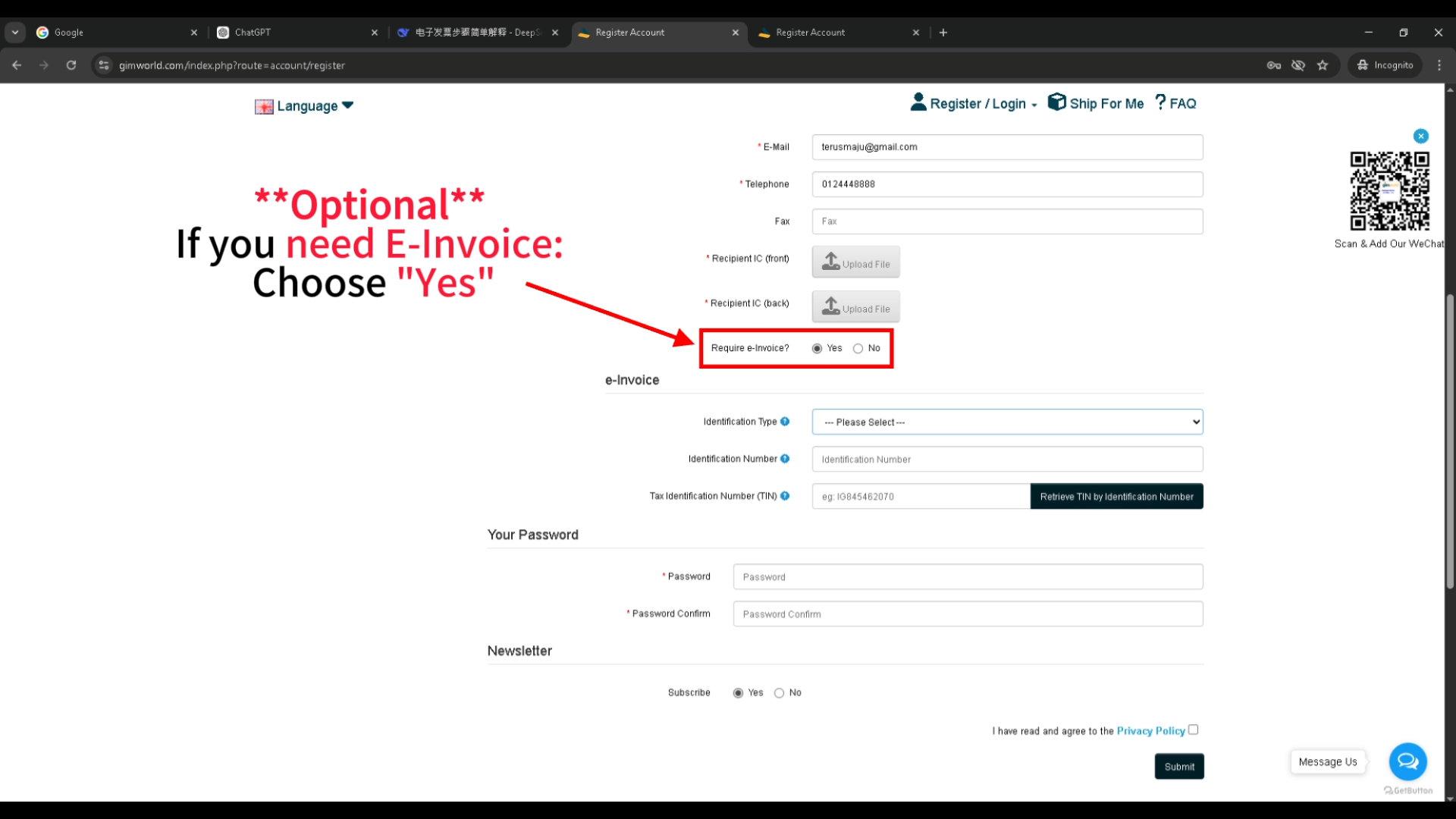
9-1. Choose "Yes"
Click to enlarge
1920x1080
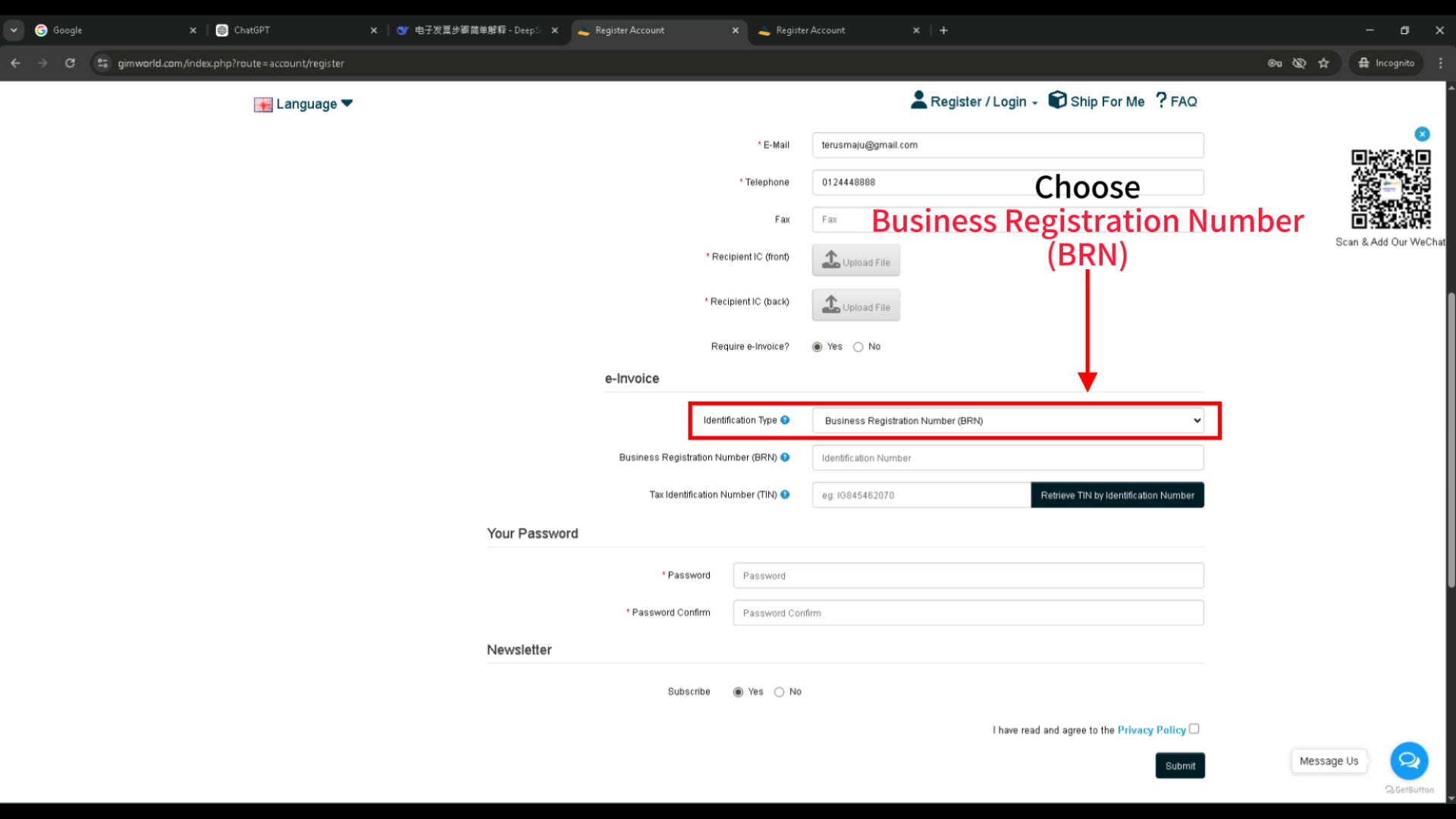
9-2. Select BRN
Click to enlarge
1920x1080
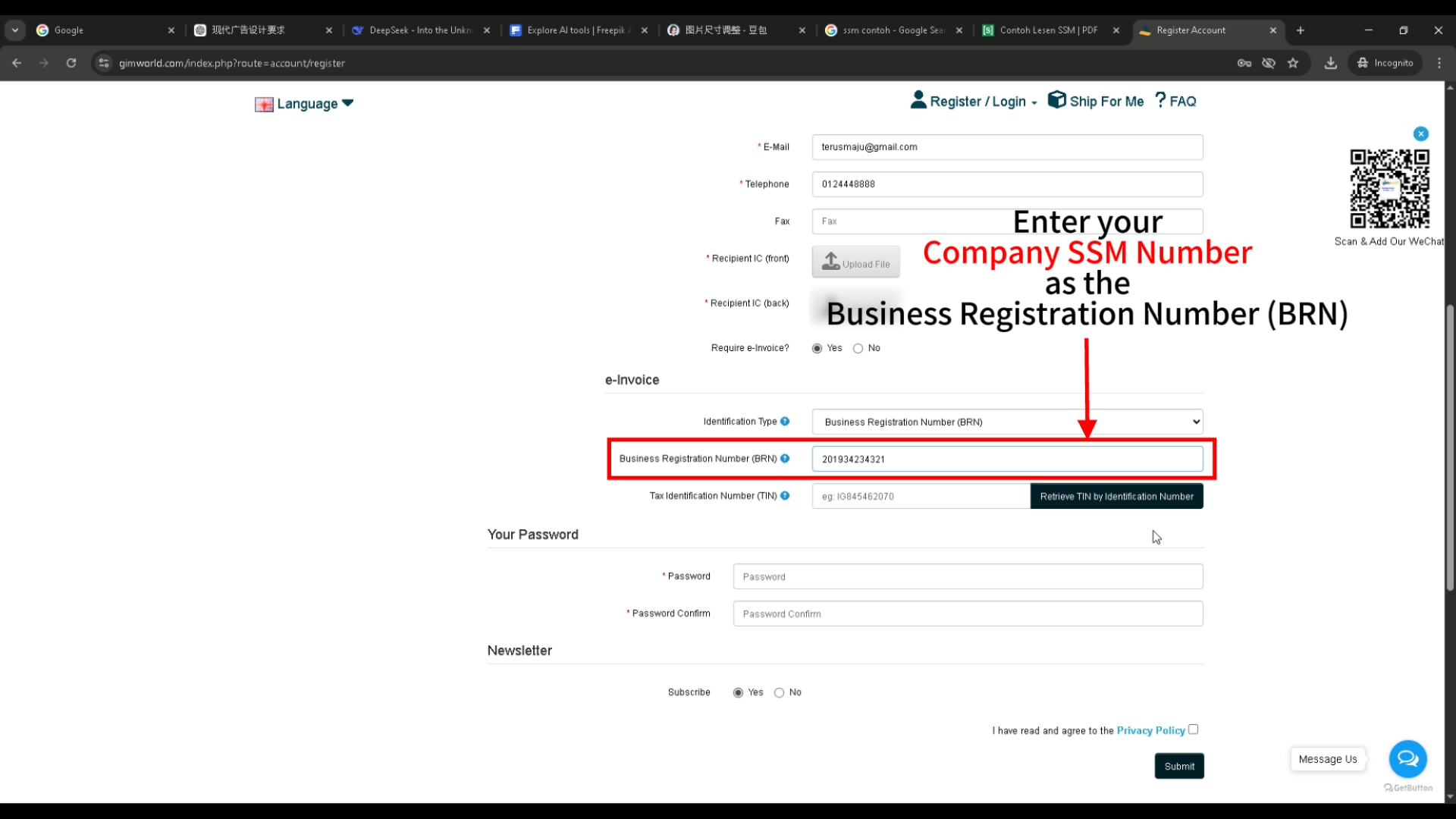
✏️ 9-3. Enter SSM as BRN
Click to enlarge
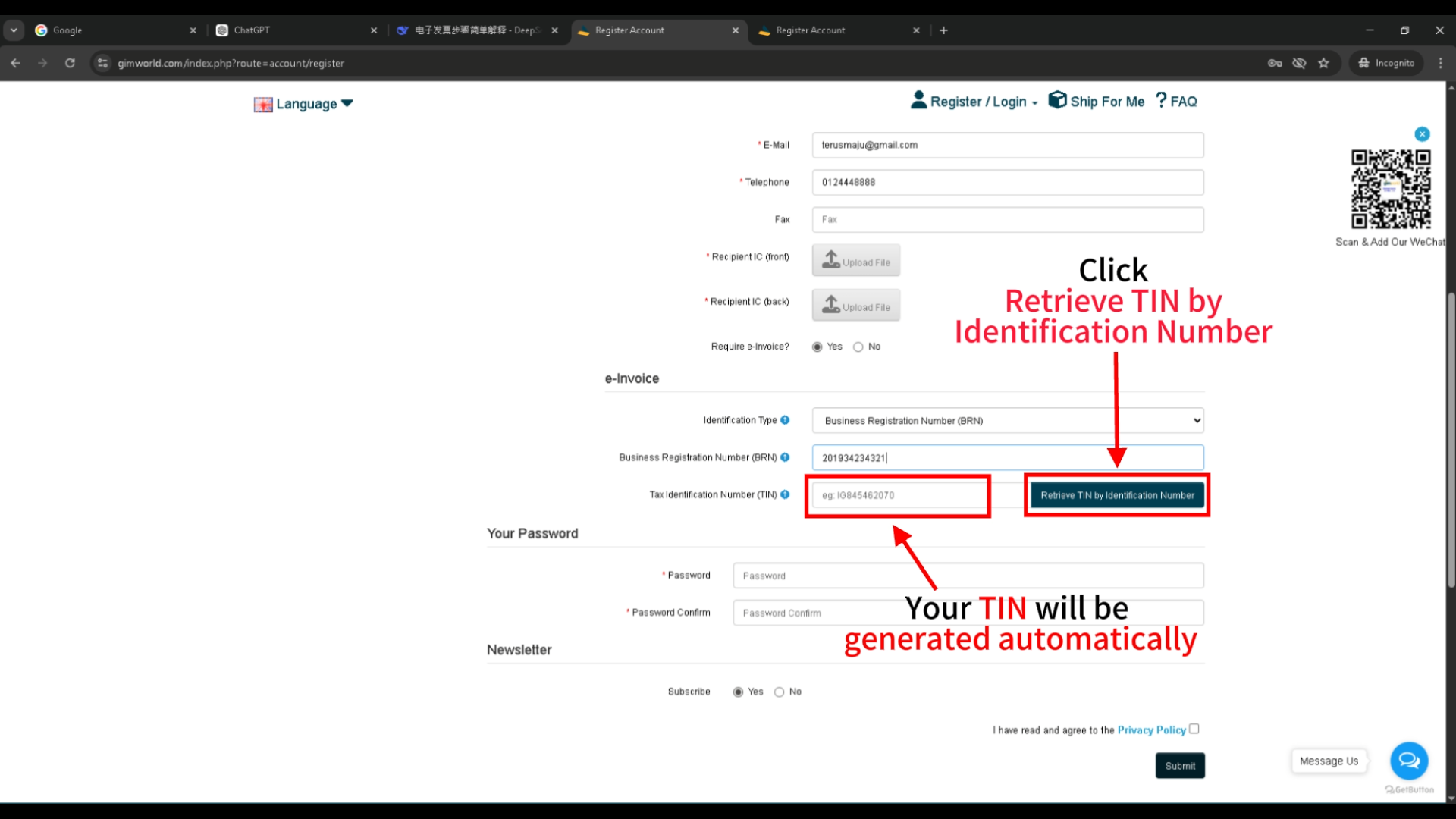
1920x1080
⚡ 9-4. Click Retrieve TIN
Click to enlarge
STEP 9 · e‑Invoice
After "Yes": four key actions
Choose “Yes” if you need e‑invoices.
Need e‑invoice (Yes)
- Choose Yes
- Identification Type → BRN
- Enter SSM number
- Click Retrieve TIN
No e‑invoice (No)
- Simply go to next step
If Yes, follow exactly:
- Choose “Business Registration Number (BRN)”
- Enter your 12‑digit SSM number
- Click “Retrieve TIN by Identification Number”
- TIN is auto‑filled
✅ After TIN appears, proceed to step 10.
Choose “No” → skip directly to step 10.
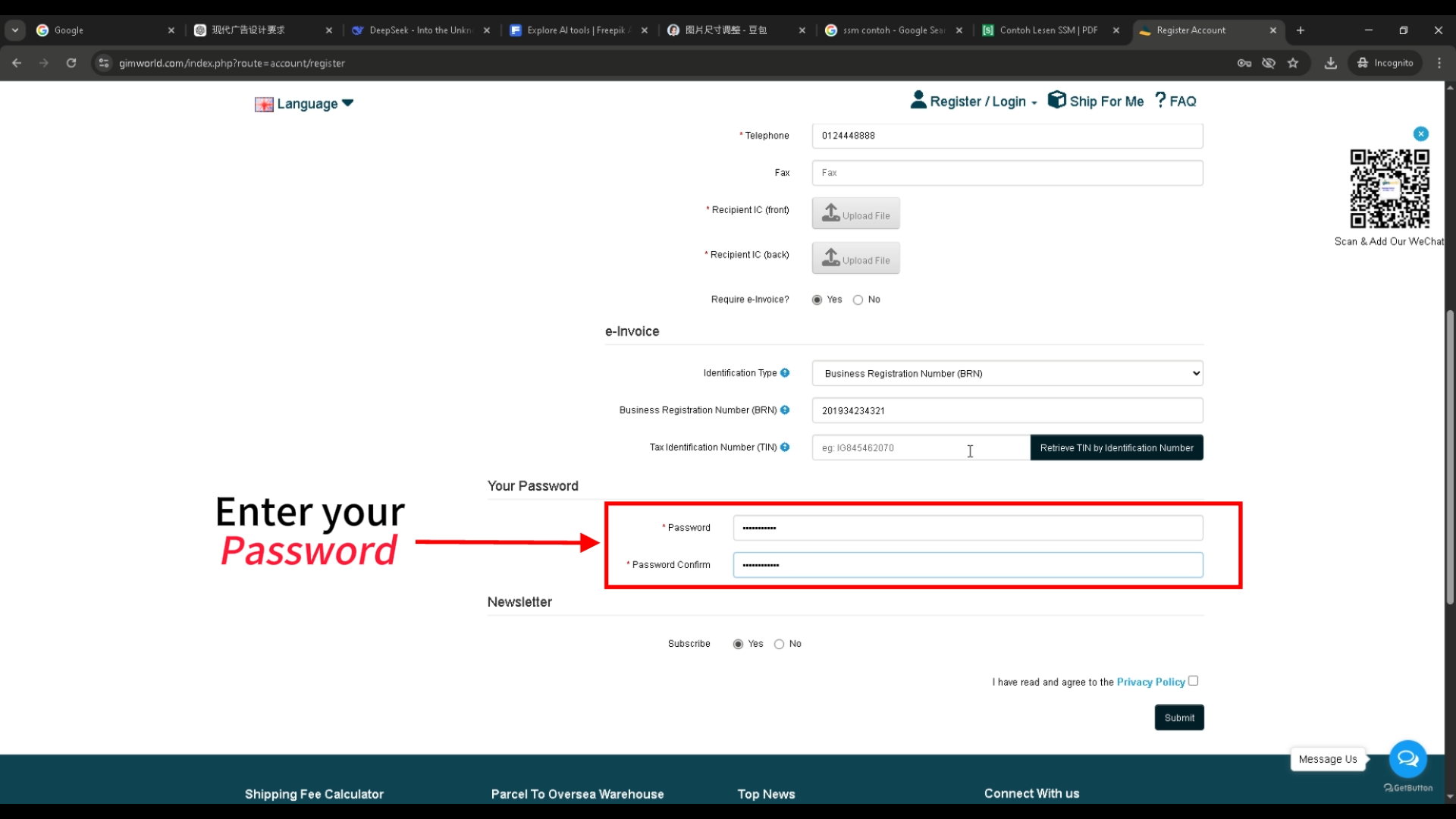
1920x1080
Set password
Click to enlarge
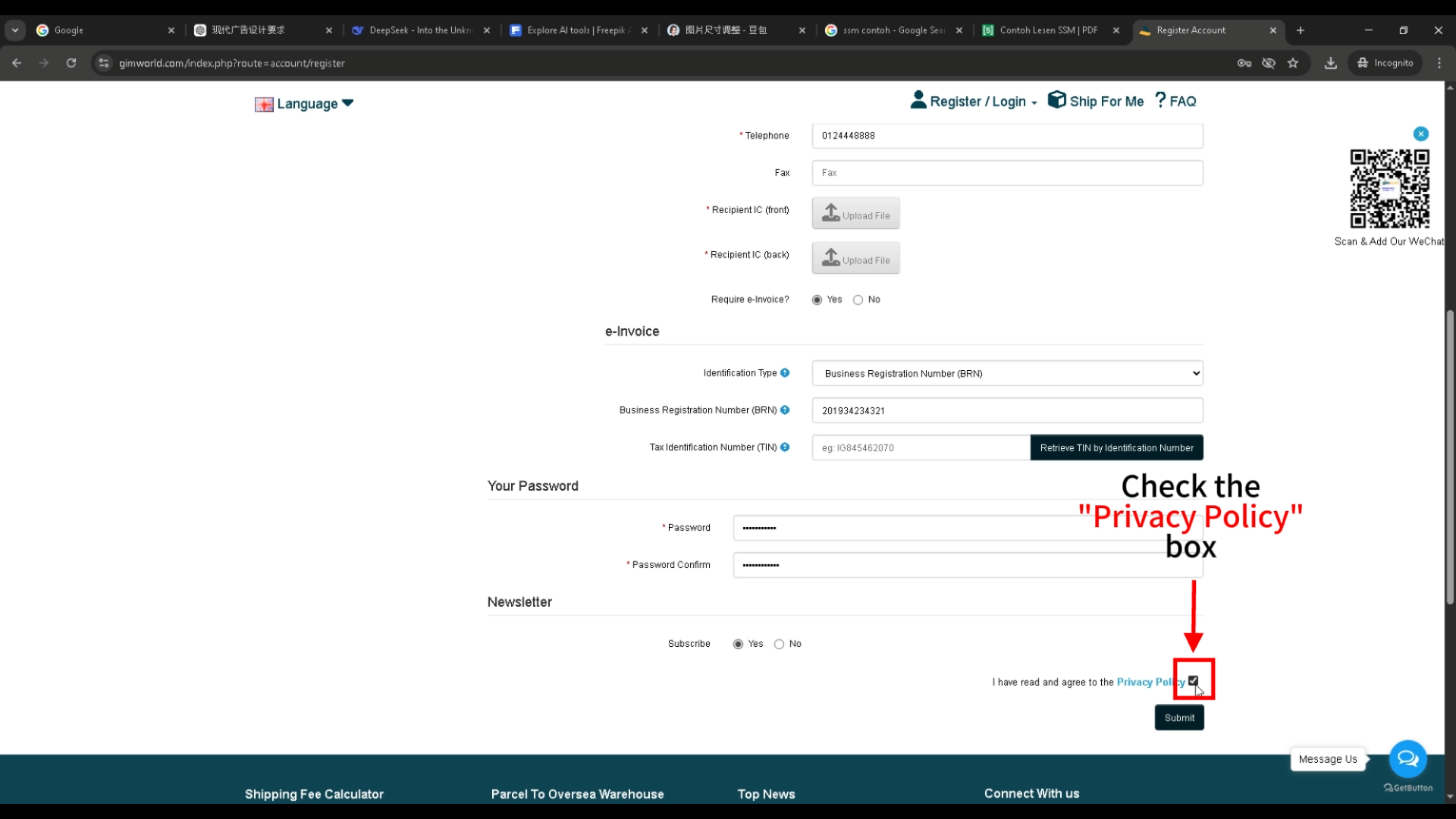
1920x1080
✅ Agree to privacy policy
Click to enlarge
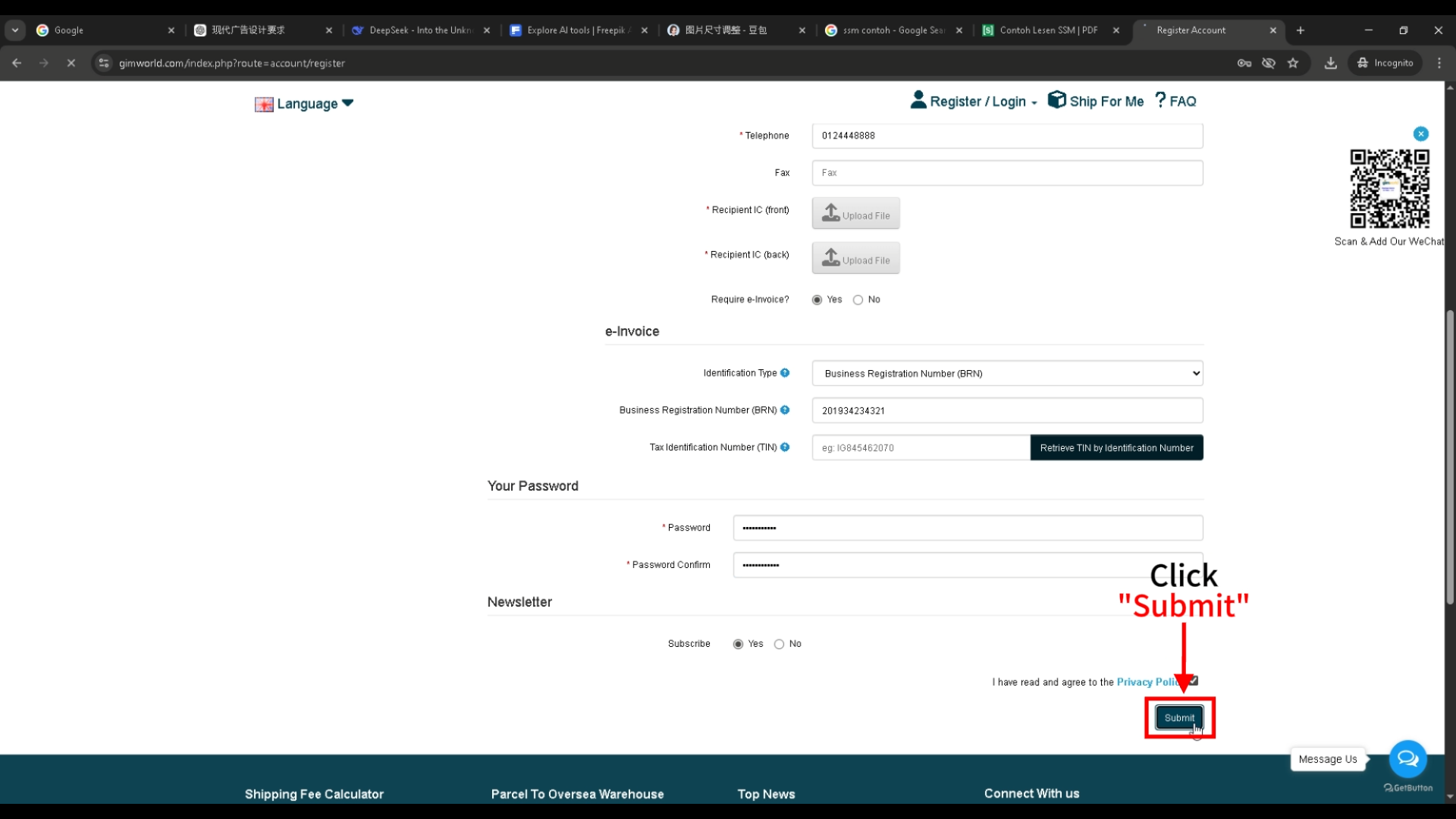
1920x1080
Click submit
Click to enlarge
STEP 10
Password & final submission
Create password: Use a strong one.
- At least 8 characters
- Uppercase + lowercase + digits
- Special characters recommended
Final step: Check “I agree to the privacy policy”, then click “Submit”.
Congratulations! Account successfully created.
Ready to sign up?
Takes about 10 minutes
Click any screenshot to enlarge · all at 1920x1080
×
![]()